Account settings & preferences
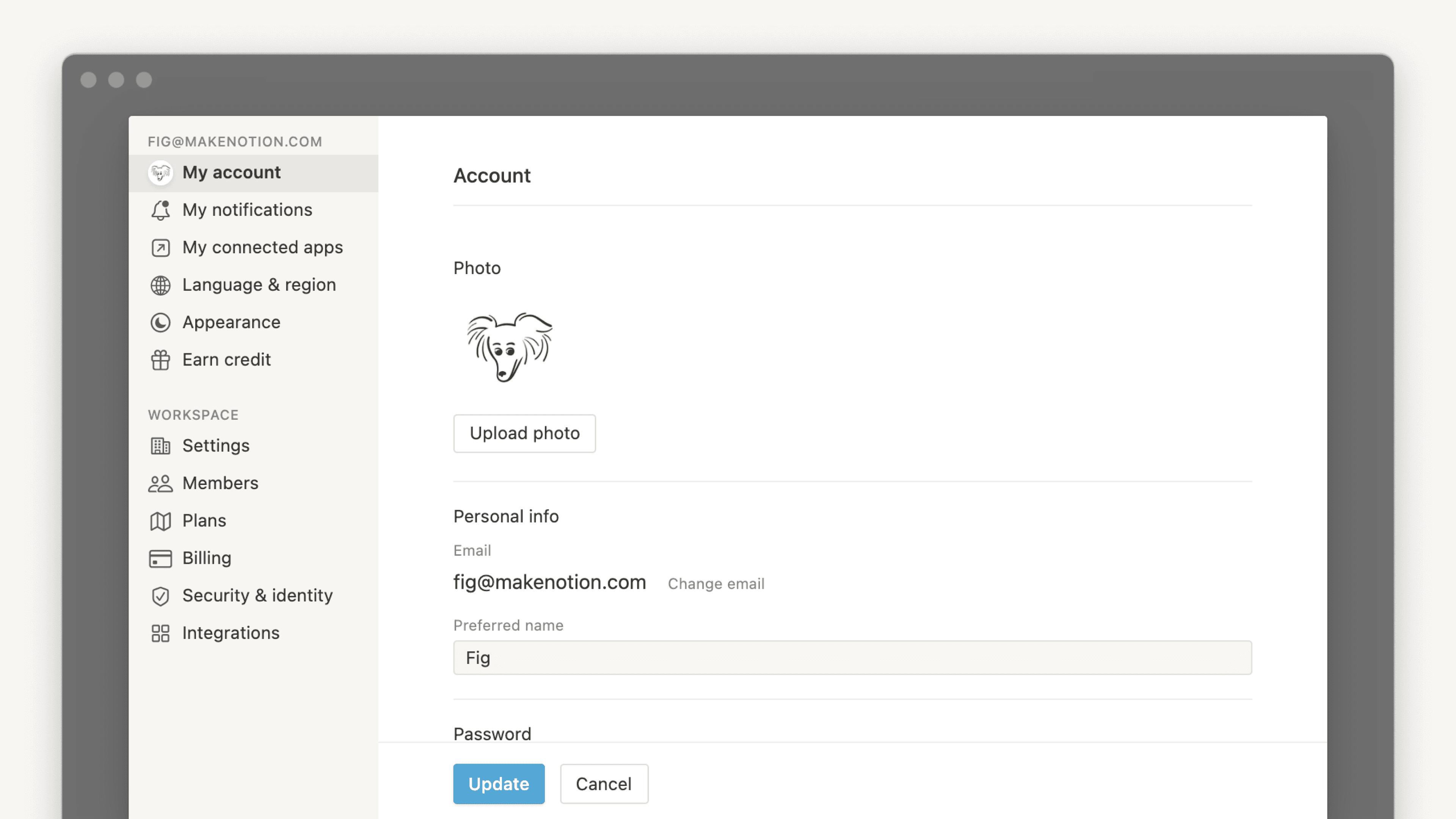
There are tons of account settings and preferences to adjust in Notion ⚙️
よくあるご質問(FAQ)に移動To change your profile photo, you'll need to be using Notion for desktop or web and follow these steps:
Go to
Settingsin your sidebar →{your name}.Select your current photo or your initial above
Add photo.Choose the file you want to use from your device and click
Open.
To change your preferred name in Notion:
Go to
Settingsin your sidebar →{your name}.Under
Preferred name, enter the name you want to use.
Your primary email address is where account notifications are sent by default. You can have up to 5 email addresses on one Notion account.
To change your primary email address:
Go to
Settingsin your sidebar →{your name}.Under
Account security, clickManage emails.Click
Add emailand enter the new email address you'd like to use.A verification code will be sent to the new address — enter it in Notion to verify it.
Once verified, click the
•••menu next to the new email and selectMake primary.Optionally, remove your old email address by clicking the
•••menu next to it and selectingRemove.
With email aliases, you can now associate multiple email addresses with your Notion account. Any verified alias can be used to log in, receive shares, and be mentioned — all pointing to the same account identity.
If your desired email is already tied to another Notion account:
You'll need to delete that account first before adding the email as an alias. Log into the other account, go to Settings → {your name} → Delete my account, then return to your main account and add the email as an alias.
For Enterprise users:
Whether you can manage your own email aliases depends on your organization's policy. Your admin may have set aliases to: Disabled (not allowed), Only verified domains (only emails matching your company's verified domains), or Enabled (any email). Contact your workspace admin if you're unable to add an alias.
I tried changing my email address but got an error message saying: "A user with this email already exists."
If you'd like to change your account email to one that’s already tied to another Notion account, you'll need to delete that account first before adding the email as an alias. To do this:
Log into the account tied to your desired email address, then go to
Settings→{your name}→Delete my account.Then return to your main account and add the email as an alias.
Can I have multiple email addresses on my Notion account?
Yes, you can. See Secondary emails to learn more about using multiple email addresses for your Notion account.

新しいメールアドレスが別のアカウントで既に使用されているというエラーが表示された場合は、そのメールアドレスに関連付けられているアカウントを削除してから、もう一度お試しください。
If you want to log into Notion using a permanent password instead of temporary login codes:
Go to
Settingsin your sidebar →{your name}.Select
Set a password.Enter a password that meets the security requirements and confirm it. Passwords must be at least eight characters long, with at least three special characters, one letter, and one number.
If you want to change or remove your password:
Go to
Settingsin your sidebar →{your name}.Select
Change password.Enter a new password and select
Change password, or selectRemove password.

備考: パスワードは、Notionのサポートチームを含め、他人には絶対に教えないでください。Notionのサポートチームがパスワードを尋ねることはありません。
パスワードはすべて弊社のサーバー上で暗号化されているため、私たちはパスワードデータにアクセスすることはできません。
Reset your password
If you forgot your password, follow the instructions to reset it here →
Learn more about two-step verification here →
Learn more about passkeys here →

Notionへのログインとログアウトについて詳しくは、こちらの記事をご覧ください →
Learn more about deleting your account here →
Learn more about logging out of all your devices here →
To customize Notion's appearance on desktop:
Go to
Settingsin your sidebar →Preferences.Open the dropdown next to
Appearanceand select one of the following options:Use system settingto follow your system appearance setting.Lightto display light mode.Darkto display dark mode.
You can also turn dark mode on or off anytime with the shortcut
cmd/ctrl+shift+L.
To customize Notion's appearance on mobile:
Open the sidebar by tapping the
•••in the top corner.Tap
Settingsand scroll to theAppearancesection.Open the dropdown and select one of the following options:
Use system settingto follow your system appearance setting.Lightto display light mode.Darkto display dark mode.
備考: ダークモードへの切り替えは、お使いのアカウントでサインインしているすべてのワークスペースに適用されます。切り替えるとすべてのワークスペースがダークモードになります。
If you're on web and you want any links to Notion pages to open in your desktop app:
Go to
Settingsin your sidebar →Preferences.Toggle on
Open links in desktop app.
You'll need to have the desktop app already installed. You’ll also need to go to Notion in your desktop app and ensure that Open links in browser is turned off in your settings.
If Notion links aren't automatically opening in the desktop app
If links to Notion pages aren't automatically opening in the desktop app, try following these steps:
Open the link in your browser.
Click
•••at the top right of the page. Scroll to the bottom of the menu that appears and clickOpen in Mac app.
To change your display language:
Go to
Settingsin your sidebar →Preferences.Under
Language & Time, open the dropdown next toLanguage.Select your language.
備考: モバイルでは、Notionアプリの言語はシステム環境設定の言語の優先順に従います。
Calendars in Notion will use Sunday or Monday as the first day of the week, depending on your region. That includes the date picker for reminders and calendar databases. If you prefer, you can change this manually. To do this:
Go to
Settingsin your sidebar →Preferences.Under
Language & Time, toggle on or offStart week on Monday.
To change your time zone:
Go to
Settingsin your sidebar →Preferences.Under
Language & Time, set your time zone manually or turn onAutomatically update time zone.
If you’re using Notion’s desktop app, you can manage settings for the app by going to Settings in your sidebar → Preferences.
Open the dropdown next to
On startupto chooseContinue where you left off, which will open the tabs you had open right before you last closed the app. Alternatively, you can chooseYour default pageif you’d like to start with the same page every time.If you want to use Command Search, which allows you to quickly search in Notion while you’re in another app, turn on
Use Command Search. Once this setting is turned on, you can also turn onShow Notion in menu barso you can get to Notion from the top of your screen, as well as adjust theKeyboard shortcut for Command Search shortcutandNotion AI shortcut.If you want search to open whenever you create a new tab, toggle on
New Tab Search. This allows you to immediately search for and navigate to a specific page when you open a new tab. If this setting is toggled off, new tabs will display the default page specified in theDefault pagesetting.If you want any links to Notion pages to open in your web browser instead of the desktop app, toggle on
Open Notion links in browser. You’ll need to go to Notion in your browser and ensure thatOpen links in desktop appis turned off in your settings.If you set up links to open in the desktop app, your browser will open a new tab automatically redirect you to the desktop app every time you click on a link to a Notion page. To have these tabs automatically closed once you’re redirected to the desktop app, toggle on
Close redirecting browser tabs.
If you don’t want your account to be recorded in page analytics, you can opt out altogether or for specific pages.
To opt out of participating in analytics altogether:
Go to
Settingsin your sidebar →Preferences.Under
Privacy, open the dropdown next toShow my view historyand selectDon't record.
Learn more about page analytics here →
You can decide if users with your email address can see your name and profile picture when they invite you to a new workspace. To do so:
Go to
Settingsin your sidebar →Preferences.Under
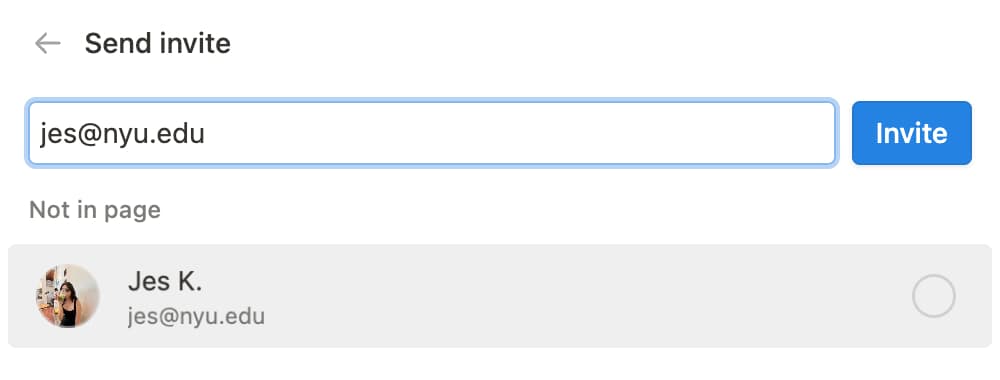
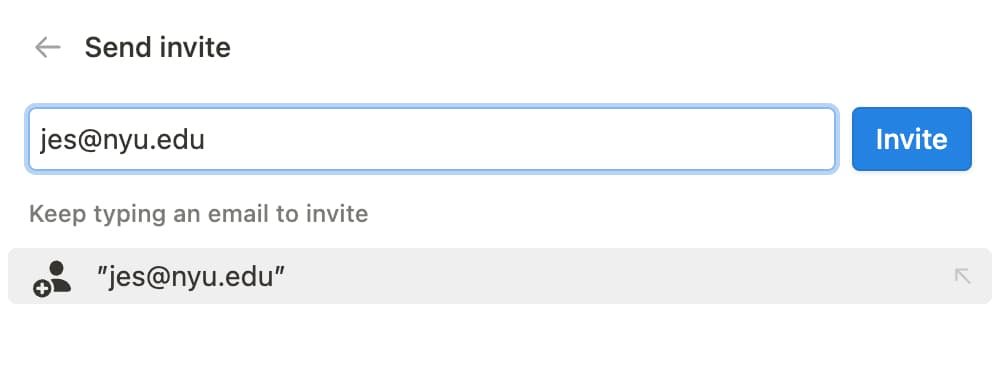
Privacy, findProfile discoverability. Turn this on to make your profile discoverable to people with your email address, or turn it off to hide your profile from people with your email address.
If you turn profile discoverability on, a user will see this when they invite you to a workspace or a page:
If you turn profile discoverability off, a user will see this when they invite you to a workspace or page:
注: 招待を実施するユーザーと同じワークスペースにあなたがすでに所属している場合、またはそのワークスペースに参加した場合、あなたのプロフィールはそのユーザーに表示されるようになります。
よくあるご質問(FAQ)
パスワードを忘れました。どうすればよいですか?
パスワードを忘れました。どうすればよいですか?
パスワードを忘れた場合は、こちらの手順に沿ってリセットしてください →
メールアドレスかパスワードが変更されたというメールを受信しましたが、私は変更していません!
メールアドレスかパスワードが変更されたというメールを受信しましたが、私は変更していません!
予期せずパスワードの変更を通知するメールを受信した場合は、できるだけ早くパスワードをリセットする必要があります。次の手順に沿って操作してください。
お使いのブラウザーでnotion.so/loginにアクセスします。
メールアドレスでログインするボタンをクリックします。Notionアカウントで使用しているメールアドレスを入力します。
パスワードを忘れた場合ボタンをクリックし、次にリセット用リンクを送信するボタンをクリックします。メールアドレスにリンクが送信されます。そのリンクをクリックすると、Notionワークスペースの
設定に移動し、パスワードがリセットされます。このような疑わしいアクティビティがあった場合は、サポートチーム([email protected])にご報告ください。
メールアドレスを変更しようとしているのですが「このメールアドレスのユーザーは既に存在しています」というエラーメッセージが出ます。
メールアドレスを変更しようとしているのですが「このメールアドレスのユーザーは既に存在しています」というエラーメッセージが出ます。
アカウントのメールアドレスを、すでに別のNotionアカウントに紐づけられているメールアドレスに変更したい場合は、現在使用しているメールアドレスに紐づけられているメールアドレスにログインし、そのメールアドレスを削除してください。手順は次のとおりです:
ご希望のメールアドレスに紐づけられたアカウントにログインし、
設定→{your name}→アカウントの削除に移動します。メールアドレスを変更したいアカウントにログインし、
設定→{your name}→メールの変更に移動します。
誤って何かを完全に削除してしまった場合、元に戻すことはできますか?
誤って何かを完全に削除してしまった場合、元に戻すことはできますか?
ページやワークスペース、さらにはアカウント全体を誤って削除してしまったとしても、私たちがお助けします!間違いは起こるものです😅。サイドバーの下部にある?をクリックしてアプリ内でメッセージを送信するか、[email protected]までメールでご連絡ください。
弊社が保持するデータベースバックアップにより、必要に応じて過去30日分のコンテンツのスナップショットを復元することができます。
